Initial Procedures to Activate CachaBOT
| The first step is to install CachaBOT on your server by clicking the “Add to Server” button on the main page. |
| The second step is to assign CachaBOT a role higher than both the “temporary” and “definitive” roles; otherwise, the bot will not be able to assign roles to users. |
|
Finally, configure the proper permissions in the channels where CachaBOT will operate
(send messages, clear chats, display embedded messages, etc). Don’t forget to register your email using the /donoservidor command, and keep your server name updated if you change it. With the command /donoservidor you also register a password that allows you to access the Administrative Panel of CachaBOT. If you forget your password, just run the command again and your password will be updated (but your account will return to the Inactive status, just confirm via the link sent to the email provided in the command and you're done! |
Commands Related to Roles
| Command | Function |
|---|---|
| /ajuda | Displays help information about the Bot Manager. |
| /listarcargos | Lists all roles registered on the server. |
| /cargoprovisorio | Defines the default role that every user receives temporarily upon joining the server. The ROLE must be provided by its ID. |
| /cargodefinitivo | Defines the definitive role that users receive after being verified. The ROLE must be provided by its ID. |
| /cargosuporte | Defines the Technical Support role for users who can configure CachaBOT on the server. The ROLE must be provided by its ID. |
Commands Related to Welcome Messages
| Command | Function |
|---|---|
| /salaboasvindas | Defines the initial channel every user can access (Welcome). The CHANNEL must be provided by its ID. |
| /msgtitulo | Defines the TITLE of the Welcome Message. |
| /msgcorpo | Defines the BODY content of the Welcome Message. See how to define content below! |
| /msgcor | Defines the COLOR of the sidebar in the Welcome Message. Accepted colors: GREEN, YELLOW, BLUE, ORANGE, and WHITE (use uppercase). The DEFAULT color is WHITE. |
| /msglinha | Defines the URL of an image (bar or line) displayed at the end of the Welcome Message. |
| /msgicone | Defines the URL of an image to be used as the ICON of the Welcome Message. |
| /boasvindas | Displays the Welcome Message in the verification channel. |
| /msgparticipacao | Defines the message users will receive after clicking “Participar” (Join) in the Welcome Message. |
General Purpose Commands
| Command | Function |
|---|---|
| /clear | Clears all messages posted in a channel. The user must have Manage Messages permission to execute this command. |
| /config | Displays all server configurations for verification. Only users with the Technical Support Role can view configurations. |
| /nomeservidor | Updates the Server Name in the database if the owner has changed it. Any user can run this command, but the server name is obtained directly from the server. |
| /donoservidor | Register the Server Owner's name, email (used as login in the administrative panel), and password in the database. Only the owner can execute this command. |
Example of a Configured Welcome Message:
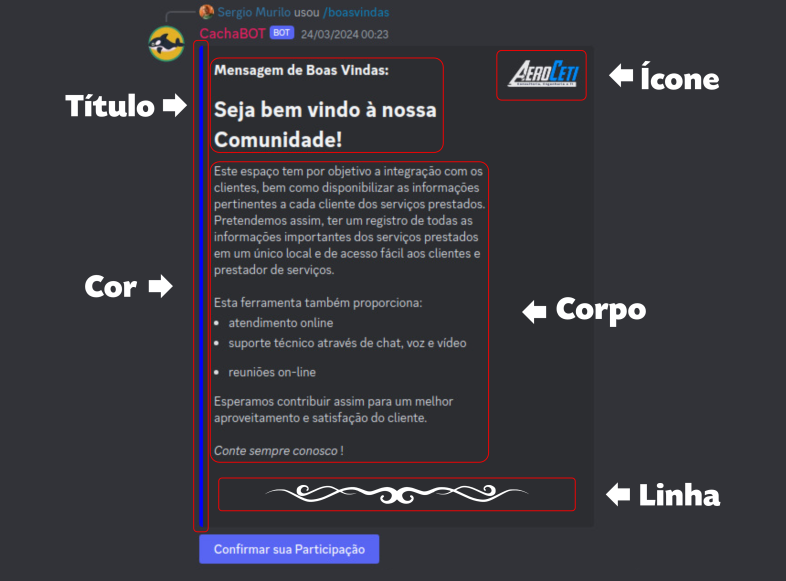
How to Create Your Welcome Message
| CachaBOT formats your welcome message through a slash command! Since this method is limited in formatting, we’ve created a small formatting code: |
| - To create a line break, use the character ‘|’ twice with no space. - Discord formatting codes can also be used. |
| So, if you type the following in the command prompt: |
| # Welcome to our Community! || || This space is intended for client interaction and sharing relevant information about each provided service. Our goal is to keep all important details in a single place, easily accessible by both clients and service providers. || || This tool also provides: ||* online assistance||* technical support via chat, voice, and video||* online meetings|| ||We hope this helps improve efficiency and client satisfaction.|| ||*You can always count on us*! |
| You’ll get a result like the example image above. |
Procedures to REMOVE CachaBOT
| If you decide to stop using CachaBOT on your server, follow these steps: |
| First, in Discord, remove CachaBOT from your server by right-clicking on it and selecting “Kick CachaBOT.” Provide a reason if desired and confirm. |
| If you have access to CachaBOT’s Administrative Panel, log in with your account and first delete your server from the Server List. Then, if desired, delete your user from the User List. You can now log out — the process is complete. |
| If you DO NOT have access to the Administrative Panel, simply send us a message through the “Contact Us” menu, providing your server name, the email you registered with the /donoservidor command, and your Discord username. We will promptly remove all your data from the system. |